
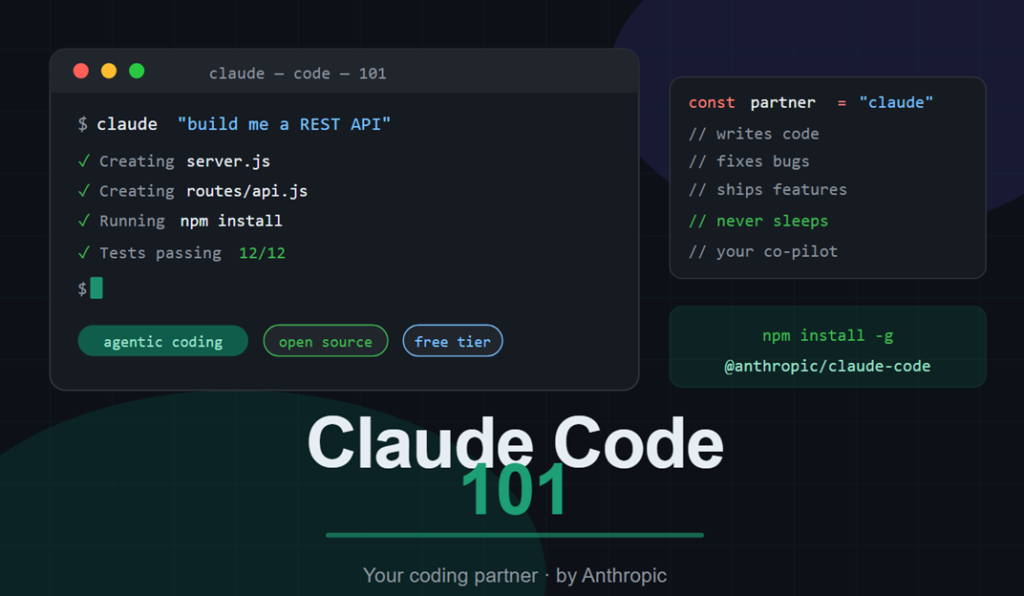
Claude Code is an AI coding assistant that understands your code, edits files, runs commands, and works with your developer tools to boost productivity.
How can you use it?
- Visual Studio Code
- Claude Desktop App
- Web
- JetBrains
Claude code has direct access to files, your terminal, and the entire codebase.
It works as an AI Agent.
What is an Agent ?
An AI Agent is software that uses AI to interact with its environment, make decisions, and complete tasks automatically. It can use tools, services, or other AI systems to achieve specific goals.
What Claude Code Can Do
- Understand your codebase and explain features or bugs
- Edit and refactor files across a project
- Run terminal commands, tests, and install packages
- Search the web for documentation and API references
Things to Know About Claude Code
- Context window: Claude has limited working memory, so it intelligently searches your codebase instead of loading everything at once.
- Permission-based actions: Claude asks before running commands or editing files, keeping you in full control.
- Not always perfect: Claude can misunderstand requests or create issues, so reviewing its work helps avoid mistakes early.
How the Agentic Loop Works
- You give Claude Code a prompt.
- Claude collects the required context and decides what actions to take.
- It performs tasks like editing files or running commands.
- Claude checks the results to see if the goal is achieved.
- If needed, it retries and improves the output until the task is complete.
- You can guide, interrupt, or add more context at any time.

Context
- Claude has context window that Determines how much of contents if can store and reference.
- Once Limit reach automatically removes or summarize to make context window to a usable size.
Tools
- Determines when to execute code to completing a task.
- Tools can be File-reading, Web Search, Any other capabilities
- Claude code uses Semantic understanding to determine which tool to call and how to use output.
Permissions
- Default mode: Claude asks before editing files or running commands.
- Auto-accept mode: File edits happen automatically, but commands still need approval.
- Plan mode: Claude creates a read-only action plan before making changes.
These settings can be customized anytime. Be careful with fewer restrictions, as mistakes may be harder to catch early.
Consider below things,
Auto-Accept vs. Approval Mode
- Approval mode: Claude asks before editing files or running commands.
- Auto-accept mode: File changes are approved automatically, while commands still need permission.
Plan Mode
Plan Mode uses read-only access to analyze your codebase and create a step-by-step implementation plan before making changes. It can ask questions, review code safely, and outline complex updates.
This mode is especially useful for large features, multi-step tasks, and safe code reviews.
Explore → Plan → Code → Commit Workflow
Explore and Plan Mode: Claude will read relevant files, do web search and give you a plan. It won’t edit files.
You need to review it, decide if you need to proceed or revise it.
Code: After plan is approved, Claude will work on items, you can auto-accepts files or ask each time to edit.
Few ways to make the coding phase more efficient:
- Set clear success criteria so the expected outcome is easy to validate.
- Add helpful tools to reduce back-and-forth during development. For web projects, browser-control extensions can help test UI directly.
- Include a reliable test suite that can continuously verify results. Automated tests also help catch issues early and improve accuracy.
Commit: Once the code is complete and you have tested run a subagent code reviewer.
- A subagent provides a fresh perspective on the codebase without carrying bias from previous sessions.
- It helps improve code reviews by identifying issues the main agent may overlook.
- Claude can also generate commit messages in your preferred style for a faster workflow.
- Repeat the process to maintain consistency and improve development efficiency.
Context Management
- Context is Claude’s working memory during a session.
- Files, commands, and messages all use context space.
- Efficient context management improves accuracy and performance.
What is the Context Window?
- The context window is the memory space Claude uses during a session.
- Prompts, files, tool calls, and results all consume context space.
- Since the space is limited, optimizing context usage is important.
- When the limit is reached, Claude compacts the context by summarizing and removing less important details.
Commands
- Use
/compactwhen continuing work on the same feature near the context limit. - Use
/clearwhen starting a new feature to avoid previous context bias. - Store important long-term information in
CLAUDE.mdfor future sessions.
Tips
- Be specific with prompts to reduce unnecessary context usage.
- Disable unused MCP servers to avoid loading extra tools into context.
- Use subagents for isolated tasks to keep the main context clean.
Code Review
/commit-push-pr Skill
- The
/commit-push-prskill automates commit, push, and PR creation in a single step.
- Sessions are automatically linked when Claude creates a PR using
gh pr create. - Use
claude --from-pr <PR_NUMBER>to continue working on the same PR later. - This helps resume tasks like fixing review comments or failed builds seamlessly.
CLAUDE.md File
Claude.md is a markdown file you add of your project root, Claude code reads it automatically every time you start a session.
- Project-level CLAUDE.md: is stored in the project root and shared with the team.
- User-level CLAUDE.md: is stored in your config folder and applies across all projects.
- Use the user-level file for personal preferences and workflows.
Subagents
- Claude can delegate tasks to subagents.
- Each subagent operated in its own isolated context window.
- Subagents runs in parallel with its own context window.
Creating Your Own Subagent
- Subagents are created using Markdown files with YAML frontmatter.
- Run
/agentsand select “Create new agent” to get started. - You can define the agent’s purpose, scope, tools, and appearance.
- Claude automatically generates the subagent’s name, description, and prompt.
- It also decides when to use the subagent based on your prompts.
Customization of Subagents
- Persistent memory: You subagent Retains Memory across conversation.
- Preload skills
: Add skills into subagents by adding skill key.
MCP
- Model Context Protocol (MCP) connects Claude Code with external tools and data sources.
- Claude automatically uses these tools when needed to answer queries more effectively.
- MCP helps access context beyond the codebase, including databases, apps, and repositories.
- Use
/mcpin a Claude Code session to manage connected servers. - Too many configured servers can consume valuable context space.
- It lets you view server status and disable unnecessary servers.
Scoping Servers
MCP servers can be scoped in three ways:
- Local — only available in the current project, just for you.
- User — available across all your projects.
- Project — uses a
.mcp.jsonfile that you check into version control so anyone on the codebase gets the exact same servers automatically.
Hooks
Hooks run commands at fixed points in Claude Code’s lifecycle — and unlike prompts in CLAUDE.md, they’re deterministic, meaning they always execute.
They’re useful for tasks like auto-formatting files, logging commands, blocking risky actions, or sending notifications when Claude finishes work.
Hooks are configured in settings.json or through the /hooks command. Each hook listens to an event and runs a command when triggered.
Available events:
PreToolUse— before a tool runsPostToolUse— after a tool runsUserPromptSubmit— before Claude processes your promptStop— when Claude finishes respondingNotification— When Claude sends a notification
A common use of hooks is auto-formatting after file edits. A PostToolUse hook can run tools like Prettier or gofmt whenever Claude updates a file.
PreToolUse hooks can also block actions before they run. The hook checks the tool input and uses exit codes to allow, block, or warn about an action.
To do this, Course Follow link: https://anthropic.skilljar.com/claude-code-101
Thank You.